AI chat in your editor
Interactive conversations with the Pi coding agent in a native VS Code panel. Markdown, code blocks with Apply to Editor, Preview Diff and Open in Editor, tables, and Mermaid diagrams.
Free, open source · Apache-2.0
Bring the Pi Coding Agent into VS Code with a full graphical interface. Chat, manage sessions, use any supported AI provider, install Pi packages and skills, and control your coding agent without leaving your editor.
Requires Pi CLI 1.4+ · VS Code 1.105+ · Windows · Linux · macOS · v3.0.0
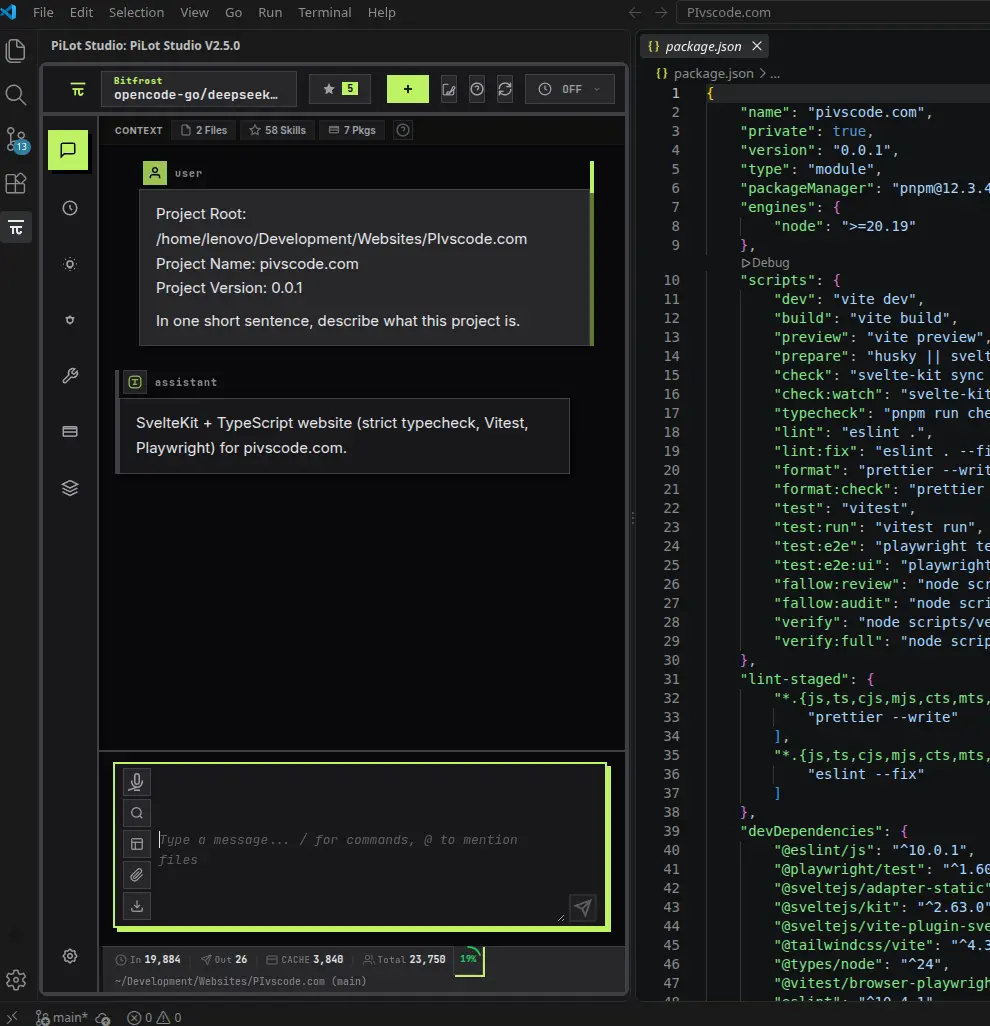
PiLot Studio wraps the Pi coding agent CLI in a complete visual interface for VS Code. No terminal gymnastics, no memorized flags — and every sidebar tab is one key press away (1–9, plus 0 for MCP).
Interactive conversations with the Pi coding agent in a native VS Code panel. Markdown, code blocks with Apply to Editor, Preview Diff and Open in Editor, tables, and Mermaid diagrams.
Branch, fork, rename, and revisit sessions in a conversation tree. Search chat with Ctrl+F, edit your last message, and export sessions when you are done.
Anthropic, OpenAI, Google, Ollama, or any OpenAI-compatible endpoint. Quick model cycling, adjustable thinking levels, and OAuth login for supported providers.
Talk to your coding agent with built-in whisper.cpp speech-to-text. One-time model download, then fully offline — your audio never leaves your device.
Browse, install, disable, and remove Pi community packages, skills, and prompt templates from the GUI — no terminal required.
Auto-attaches your editor selection, diagnostics, and git status. Type @ to mention files, drag-and-drop images, or right-click to add files to chat.
Enable, disable, or restrict what the agent can do with tool presets (default, review, none, custom) — including read-only review sessions.
Manage MCP servers from a dedicated tab: connection state, tools, project overrides, and codemode, deferred, direct, or hidden exposure — with OAuth sign-in and codemode settings, no JSON editing.
Open the System Prompt tab to see exactly what the model receives for the active session — SYSTEM.md, settings overrides, and extension modifications included — with copy-to-clipboard, word wrap, and automatic updates when a new run starts.
Draft commit messages from staged changes with one click, see the current branch in the footer, and preview proposed diffs before applying them.
PiLot Studio is BYOK — it never proxies your traffic or sends your keys to us; they stay in Pi's local auth store. Choose any provider the Pi coding agent supports, including fully local models.
Claude models
Bring your own API key
GPT models
Bring your own API key
Gemini models
Bring your own API key
Local models (llama.cpp family)
Runs on your machine
Any compatible endpoint
Add custom providers in the GUI
Comparing options? See the provider & BYOK guide.
No terminal workflow to learn. Install the CLI, install the extension, add a key, open the panel — the Pi coding agent GUI does the rest.
One command installs the Pi coding agent:
curl -fsSL https://pi.dev/install.sh | shGet the extension from Open VSX or the VS Code Marketplace — it is free and open source.
Point PiLot at any supported provider — or run local models via Ollama. Keys stay on your machine.
export ANTHROPIC_API_KEY=sk-ant-…Press the shortcut and start chatting with your coding agent inside VS Code.
Every core action has a shortcut — the GUI never traps you in mouse mode.
(macOS: use Cmd where you see Ctrl.)
PiLot Studio is a free, open-source VS Code extension that gives the Pi coding agent a full graphical interface: chat, sessions, providers, packages, skills, editor context, and voice dictation — without the terminal.
No. PiLot Studio is a GUI, not a gateway: it runs the Pi coding agent CLI with your own API keys (BYOK). You keep your existing Anthropic, OpenAI, Google, or OpenAI-compatible accounts — or run local models through Ollama.
Install Pi (the pi CLI from pi.dev), install PiLot Studio from the marketplace, then press Ctrl+Shift+Alt+P (Cmd+Shift+Alt+P on macOS). The full step-by-step is on the install page.
No — PiLot Studio is a GUI for the Pi coding agent CLI, so `pi` 1.4.0 or newer must be installed on your machine. PiLot detects, updates, and manages the binary for you.
Anthropic (Claude), OpenAI (GPT), Google (Gemini), Ollama for local models, and any OpenAI-compatible endpoint — custom providers can be added directly from the GUI, with OAuth login supported for some providers.
No. Dictation runs on a local whisper.cpp speech-to-text model — a one-time model download, then all transcription happens on your device. Your audio never leaves your machine.
Yes. PiLot Studio is free and open source under the Apache-2.0 license. You only pay your AI provider for the tokens you use — or nothing at all with local models.
The System Prompt tab shows the exact, live system prompt the model receives for your active session — including SYSTEM.md, APPEND_SYSTEM.md, pi-agent system-prompt settings overrides, and any per-run extension modifications. Copy it with one click, toggle word wrap, and it refreshes automatically when a new run starts. Press 8 to open it.
Yes. The MCP tab lists servers from PI's global mcp.json and, in trusted projects, .pi/mcp.json — with live connection state, available tools, and per-server exposure (codemode, deferred, direct, or hidden). Add, remove, enable, disable, or sign in to OAuth servers from the panel; Preferences → MCP & Codemode controls the codemode mode and inline tool budget.
Windows, Linux, and macOS. VS Code 1.105 or newer is required (it bundles the Node 22.19 runtime that Pi 1.4 needs), plus Pi CLI 1.4.0 or newer.
Ready to try it? Install PiLot Studio free — or read how to use the Pi coding agent in VS Code.
Guides for getting the most out of the Pi coding agent in VS Code.
Step-by-step: install the pi CLI, add PiLot Studio to VS Code, configure a provider, connect MCP servers, start a session, and fix common first-run issues.
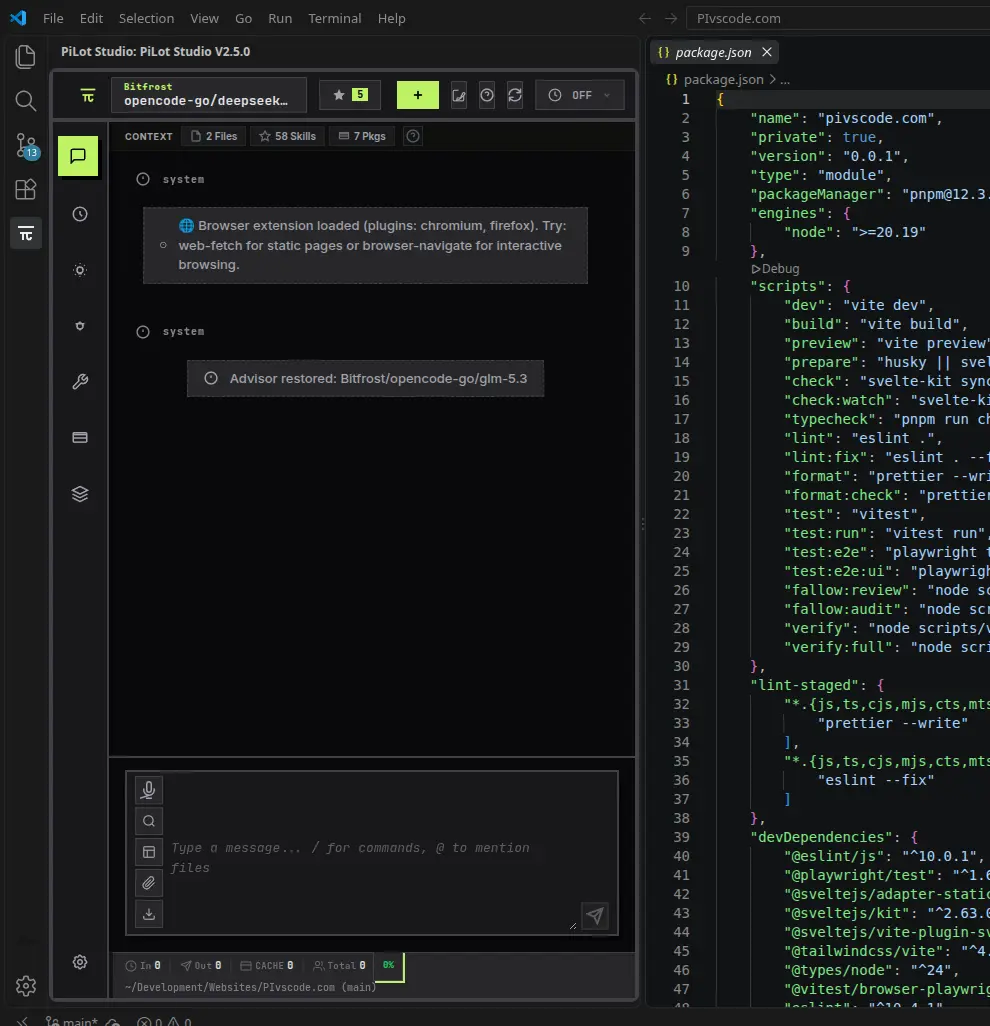
The Pi coding agent is terminal-first. See what PiLot Studio adds on top — visual sessions, one-click models, context control — and when the CLI still wins.
PiLot Studio is a multi-provider, BYOK AI coding assistant for VS Code. How provider switching, local models via Ollama, and privacy-oriented settings work in practice.